App promotion · 5 min read
How to Promote Your iOS or Android App With a Branded Store QR Code
Turn your App Store or Google Play listing into a branded QR code. Learn where to use it, when to make two codes, and what to test before printing.
By MosaicQR team · Published · Updated
A poster has a small window to turn someone’s interest into a download. Put a QR code beside a clear invitation, such as “Try your first lesson,” and give people a direct path to your app listing.
A plain code can do that job. A branded store code adds a familiar visual cue, so people can recognize where they’re going before they scan. Keep the store name beside it too.
Start with the right store link
Copy the link from your app’s actual listing. For iOS, that’s an apps.apple.com URL with an app ID. For Android, it’s a play.google.com/store/apps/details URL with an id parameter. Keep the full link, including the app ID and any parameters you need.
Here’s the same app, Duolingo, in both stores. MosaicQR uses the store’s favicon in these examples, not Duolingo’s app icon.

Apple App Store
Duolingo
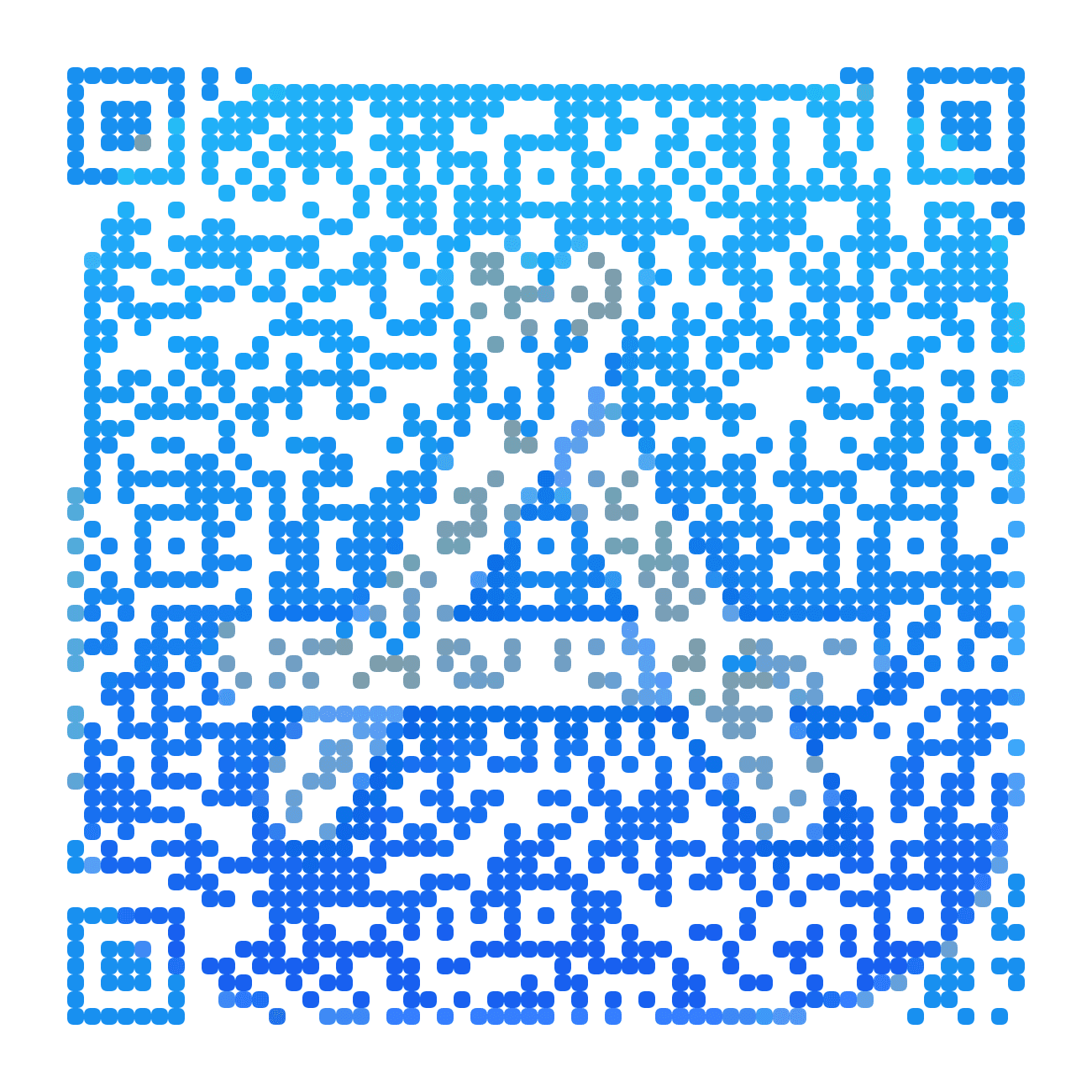
Open the store listing

Google Play
Duolingo
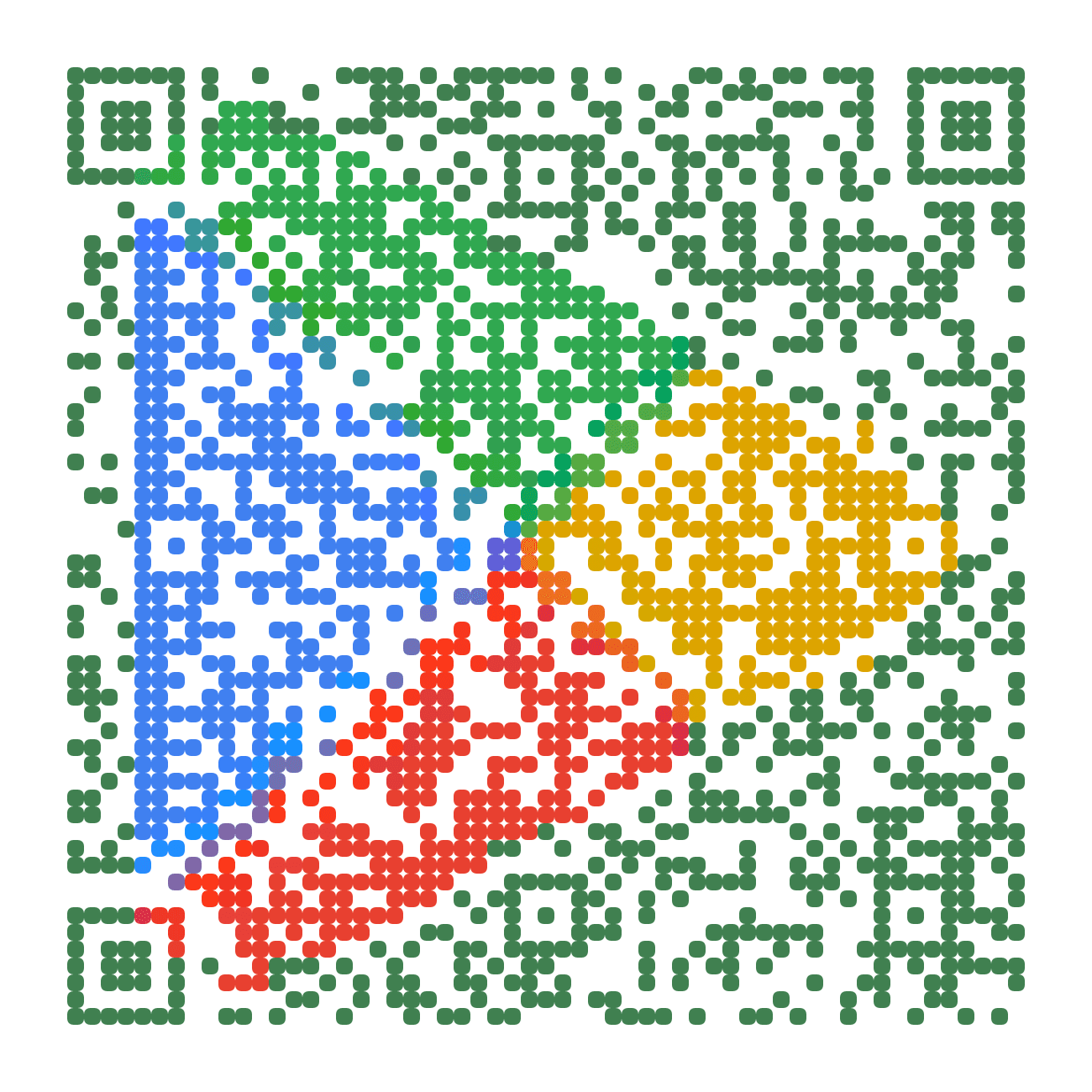
Open the store listing
These are direct-link examples rendered with MosaicQR’s image engine. The live generator creates dynamic codes with an activation step. Apple, Google Play and Duolingo own their respective names and marks. These examples are not sponsored or endorsed by them.
Make your code in three steps
- Copy your listing URL. Open it once in a browser to check the app and store. Don’t use a search results page.
- Paste it into MosaicQR. The generator finds the store favicon for App Store and Google Play links. Generate a preview and check that the destination is right.
- Activate, test and download. Follow the current account and activation steps in the generator. A preview alone does not mean your code is ready to distribute. Scan the finished export before using it.
The store favicon helps identify the destination. It does not add Apple or Google endorsement, and it does not change which app the link opens.
Use two codes when you have two listings
If your app is on both platforms, put two clearly labeled codes on your design: “Get it for iPhone” and “Get it for Android.” Give each code enough room that someone can aim their camera at one without catching the other.
An App Store link does not turn into a Google Play link when an Android phone scans it. If your layout only has room for one code, link to a mobile-friendly page with two store buttons. That page gives people a choice; it is not automatic device routing.
Put the code where people can act on it
- Booth signs: Pair a short demo with a download prompt. Keep the code within comfortable camera reach.
- Posters and flyers: Lead with one useful thing your app does. Put the code near that message, with the store label underneath.
- Package inserts and table cards: Explain why someone should install now, such as setting up the product or starting a first session.
- Pitch decks and desktop pages: Leave the code on screen long enough to scan. Include a normal link for people opening the deck on their phone.
A QR code on a phone screen can be awkward to scan with that same phone. In social posts, emails and mobile pages, make the store link tappable. The QR should support the link, not become an obstacle to it.
Test the file you will actually share
A code that scans in a large browser preview may struggle after a design tool shrinks it or a printer softens the edges. Test the finished material before ordering a stack of flyers.
- Scan on a current iPhone and a current Android phone.
- Check that each code opens the intended listing, not a search page or an inactive-code screen.
- Test the downloaded export at its final printed size and normal viewing distance.
- Keep a clear area around the code and enough contrast between its shapes and background.
- Test again after cropping, compression, placement in a design tool, or a print proof.
- Keep a tappable store link beside the code in digital versions.
See the MosaicQR printing guide for size and export guidance. If a test fails, make the code larger or simplify the surrounding design, then test again.
Check activation before launch day
The current MosaicQR generator creates dynamic codes. Their short links need to be active before you distribute them. Check the account and plan details shown in the generator, and scan the activated result yourself.
Changing a destination later is different from sending each device to a different store. Keep that distinction clear when you plan your campaign. For a two-store layout, check both destinations after any change.
Make a branded QR code for your app
Paste your store listing. We’ll recognize the destination and carry it into the MosaicQR generator, with the store favicon ready to use.