Social promotion · 5 min read
How to Share an Instagram Profile With a Branded QR Code
Turn an Instagram profile link into a branded QR code for signs, packaging and events. Learn how to choose the right link, add a useful prompt and test it.
By MosaicQR team · Published · Updated
A sign, product label or market stall can introduce your work in person. A profile QR code gives someone a direct way to keep following after they walk away.
A branded code can also carry a visual cue from Instagram. Pair it with your handle and a specific reason to scan, so the destination is clear even before someone opens their camera.
Link to the profile, not an individual post
Open the profile in a browser and copy its full URL. A profile link normally looks like instagram.com/yourhandle/. Check the spelling carefully, especially if the printed design will be used for more than one event.
Post, Reel and Story links lead to one piece of content and may age quickly. Use one of those only when the campaign is specifically about that item. For an ongoing follow prompt, use the profile URL.
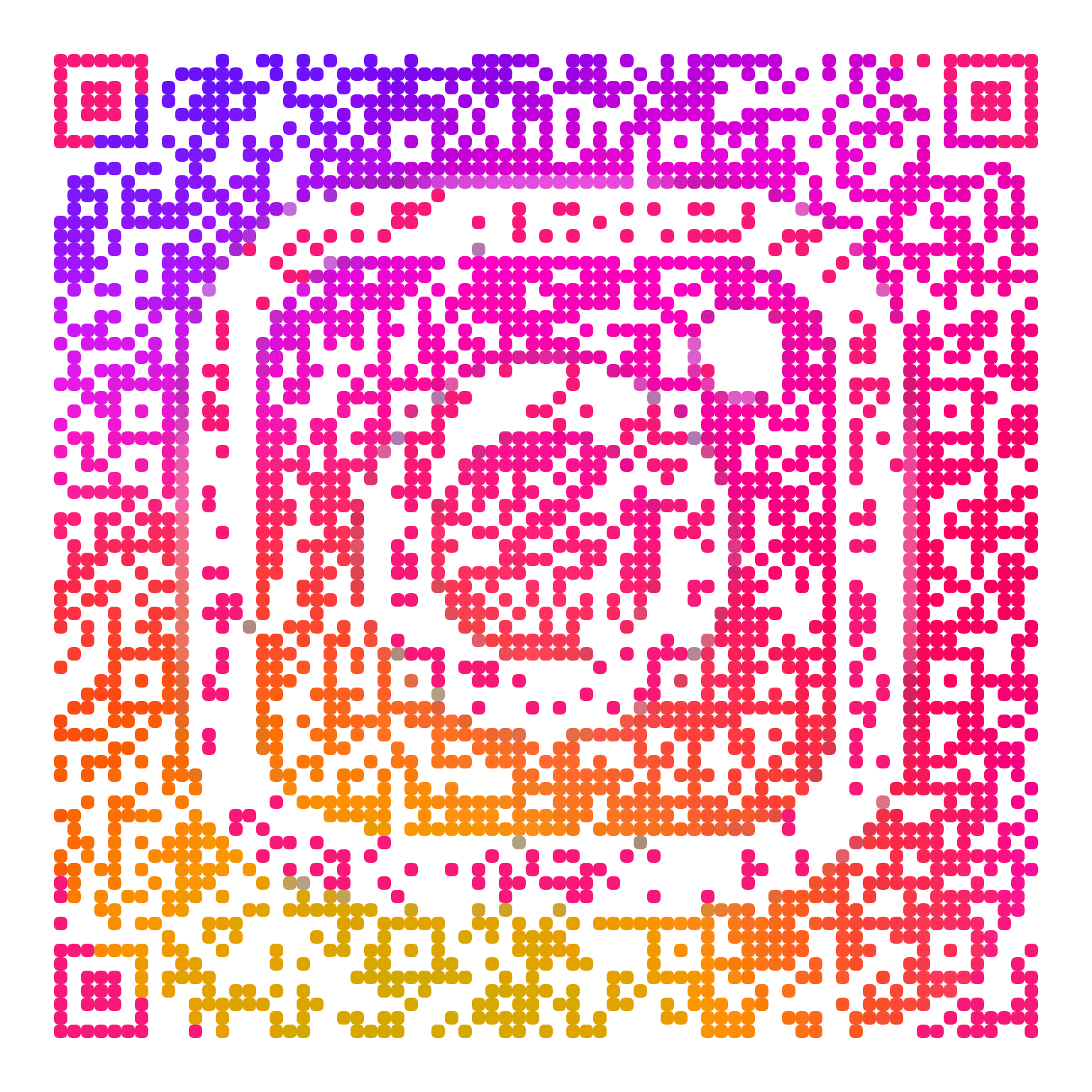
Instagram profile example
@nasa
A profile destination for a counter sign, exhibit card or printed handout. Put the visible handle next to the code so people can confirm where it leads.
Open the Instagram profileTry this profile in MosaicQR →
This direct-link example was rendered with MosaicQR’s image engine. Instagram and NASA own their respective names and marks. This example is not sponsored or endorsed by either organization.
Make your profile code in three steps
- Copy the profile URL. Open it in a private browser window to confirm that it reaches the public profile you intend to share.
- Paste it into MosaicQR. The form below carries the profile into the generator. Review the URL and generate a preview.
- Activate, test and download. Complete the account and activation steps shown in the generator, then scan the final export before placing it in a design.
Give people a reason to scan
“Follow us” is clear, but a more concrete prompt often fits the moment better. A bakery might invite visitors to see tomorrow’s flavors. A gallery can point to installation notes. A maker can promise process videos or restock announcements.
Keep the prompt honest and short. Show your @handle near the code as a fallback and as confirmation that the scan is going to the right account.
Put the code where a phone can reach it
- Storefronts and counters: Place it near the point where visitors have a moment to stop, not on a door that is always moving.
- Packaging and inserts: Connect the follow prompt to care instructions, recipes, demonstrations or new releases.
- Event signs: Keep it at a comfortable camera height and large enough to scan without stepping into the flow of traffic.
- Menus and table cards: Give the code its own clear area instead of squeezing it between prices or dense copy.
On a mobile page, email or Instagram post, make the profile URL tappable. Asking someone to scan a code displayed on the same phone creates unnecessary work.
Test outside the Instagram app
Test with the regular camera on both iPhone and Android. The scan may open the Instagram app for one person and a browser for another. Both paths should reach the same public profile.
- Confirm the username and profile image after the page opens.
- Check the destination while signed out of Instagram.
- Scan the downloaded file at its intended printed size.
- Keep clear space around the code and strong visual contrast.
- Retest after a printer proof, crop or image compression.
The MosaicQR printing guide covers sizing and export checks. If the final piece scans slowly, make the code larger before changing its artwork.
Plan for username changes
A direct Instagram URL contains the username. If the account changes its handle, the old link may stop reaching the intended profile. The current MosaicQR generator creates dynamic codes, so an activated code can use an updated destination without replacing the printed artwork.
Check the account and plan details shown during activation. After any destination change, scan the physical code again and confirm the visible handle on the design still matches.
Make a branded QR code for your Instagram profile
Paste a public Instagram profile URL. We’ll check the profile path and carry it into the MosaicQR generator.