
Game promotion · 6 min read
How to Promote a Steam Game With a Branded QR Code
Turn a Steam store page into a branded QR code for conventions, trailers and print campaigns. Learn what to link, where to place it and how to test it.
By MosaicQR team · Published · Updated
A convention booth, trailer end card or review handout has only a few seconds to turn interest into a wishlist or purchase. A QR code can take a player directly to the game’s Steam store page.
A branded code adds a recognizable Steam cue while the game title and call to action explain exactly what happens next. Keep all three close together: artwork, instruction and destination label.
Copy the game’s store page URL
Open the game in a desktop browser and copy the canonical Steam store page. The useful part looks like store.steampowered.com/app/followed by the numeric app ID. A search result, community page or publisher page is not the same destination.
This example uses Stardew Valley’s store page. MosaicQR uses Steam’s favicon as the visual source, not the game’s key art or icon.
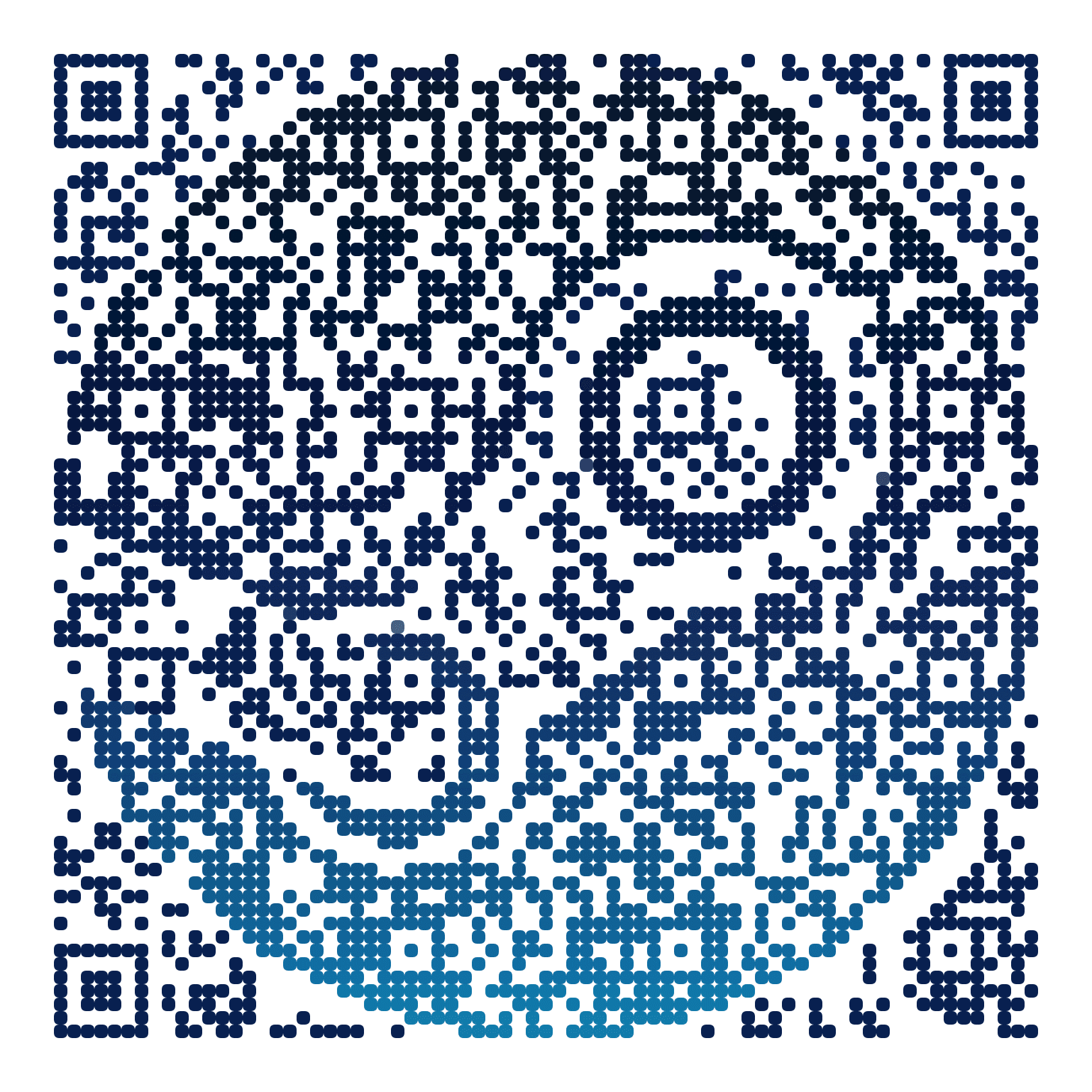
Steam store example
Stardew Valley
A direct store destination for a convention sign, press card or trailer end frame. Pair it with “Wishlist on Steam” before launch or “Available on Steam” after release.
Open the Steam store pageTry this game in MosaicQR →
This direct-link example was rendered with MosaicQR’s image engine. Steam, Valve and Stardew Valley’s creators own their respective names and marks. This example is not sponsored or endorsed by them.
Make your Steam code in three steps
- Copy the store URL. Open it once outside the Steam client and confirm the title, publisher and app ID.
- Paste it into MosaicQR. The form below recognizes a Steam game page and carries the complete destination into the generator.
- Activate, test and download. Complete the current account and activation steps, then scan the exported artwork before adding it to campaign materials.
Match the prompt to the release stage
Before release, “Wishlist on Steam” is more useful than a vague “Learn more.” During a demo event, ask players to download the demo if one is available. At launch, switch the surrounding copy to “Available now” only when the store page is ready to sell.
The QR destination can remain the store page through those stages. The printed prompt still needs to be accurate for the date and place where people see it.
Use it where players have another device
- Convention booths: Put the code on a sign or table card where someone can scan without blocking the demo station.
- Trailer end cards: Hold the final frame long enough to aim a phone, and display the typed store URL or game title too.
- Press kits and postcards: Use the store page as the player action and keep press-only downloads on a separate link.
- Posters and display ads: Size for the real viewing distance, not just the design canvas on your monitor.
For a social post, Discord message, email or mobile site, use a normal tappable Steam link. A QR code works best when the destination is on a different screen or a physical surface.
Account for Steam’s age and sign-in screens
Some players will see an age check, regional notice or sign-in prompt before the store listing. Those steps are controlled by Steam. Test the path while signed out and avoid copy that promises a one-tap purchase or download.
- Scan with current iPhone and Android camera apps.
- Confirm the numeric app ID and game title on the opened page.
- Test on Wi-Fi and cellular data at the event location.
- Scan the final export at its printed or on-screen size.
- Retest after video compression, print proofing or layout changes.
See the MosaicQR printing guide for sizing and export guidance. A trailer frame should also include a readable title for viewers who cannot scan in time.
Check the destination before every campaign
A Steam app ID is stable, but availability, demos and store copy can change. Scan the actual campaign file before each event or paid media run. Confirm that the page is public in every region you target.
The current MosaicQR generator creates dynamic codes. Follow the account and activation details it displays, and verify any destination update with a fresh scan before reusing older printed material.
Make a branded QR code for your Steam game
Paste a public Steam game page. We’ll recognize its app ID and carry the destination into the MosaicQR generator.